October 24, 2026 · Nicholas Kalisz
How to find Sony S&Q slow-motion clips in DaVinci Resolve
Sony conforms S&Q in camera, so a 120fps take imports reading 23.976 and looks identical to every other clip in the bin. Here is why your slow motion is invisible, why the usual frame-rate advice does not fix it, and a free tool that tags every S&Q clip in one pass.
A Sony S&Q clip imports reading its base frame rate, not its capture rate, because the camera conforms the slow motion before writing the file. In the media pool it looks identical to every normal take, so there is nothing to sort by and nothing to filter on. That is why you cannot find your slow motion, and why the usual frame-rate fixes do not help.
Why your S&Q clips show the wrong frame rate
Shoot 120fps S&Q on a 23.976p base and the camera does the math on the card. What lands is a 23.976fps file that is already slowed down. It plays correctly, at the right speed, with no conform needed from you.
Which is convenient, and also the entire problem. The file reports 23.976fps because it is 23.976fps now. Your normal takes report 23.976fps too. Nothing in the container separates them, so there is no column to sort and no property to filter. The slow motion is wearing the same clothes as everything else.
This is the same on every Sony that shoots S&Q. FX3, FX6, FX9, FX30, a7S III, a7 IV and the rest of the line behave identically, whether you cut in Resolve, Premiere or Final Cut.
Why "my 60fps footage shows as 24fps" is the wrong question
Search this and you mostly find people asking some version of why their 60fps or 120fps footage shows up as 24fps, and a lot of good advice about frame rate mismatch: right-click the clip, open Clip Attributes, set the frame rate to match the timeline. Change Clip Speed. Set the retime percentage.
All of that is correct, and none of it is about this.
That advice solves the opposite problem. It is for a clip that reports 120fps and plays too fast, where you want it slowed. Sony already did that step for you on the card. There is no mismatch to fix and no attribute to override.
What you have is an identification problem, and every one of those answers assumes the identification is free. On a short job it nearly is. You remember. On a documentary or an episodic season, with cards coming in for weeks, it is not free at all, and nobody writes about that part.
What it costs on a real job
I came back from a shoot in Chicago with 4,986 files. Somewhere inside them were 1,582 clips shot in slow motion, and there was no version of being organized that was going to surface them.
The cost is not dramatic, which is why it goes unnoticed for years. It shows up as scrubbing. You open eleven clips to find the one you remember, nine seconds to load and three to decide, two hundred times across an assembly. That is a day you cannot put on an invoice.
The worse version is finding out late. A shot runs at speed in a cut that was supposed to breathe, nobody catches it in the room, and the client catches it on the second viewing.
The camera knew the whole time
Here is the part that stings. The real capture rate is recorded. Sony writes it into the metadata beside every clip, along with a flag that names the recording mode as slow and quick motion outright.
It has been sitting on every card I have ever offloaded. Resolve does not read it. Neither does Premiere, or Final Cut. The information exists and nothing in your edit suite looks at it.
Finding them
SQ Finder reads what the camera recorded instead of what the file claims about itself, and tags every S&Q clip in the project: a keyword, and orange in the bin. One smart bin collects them from there.
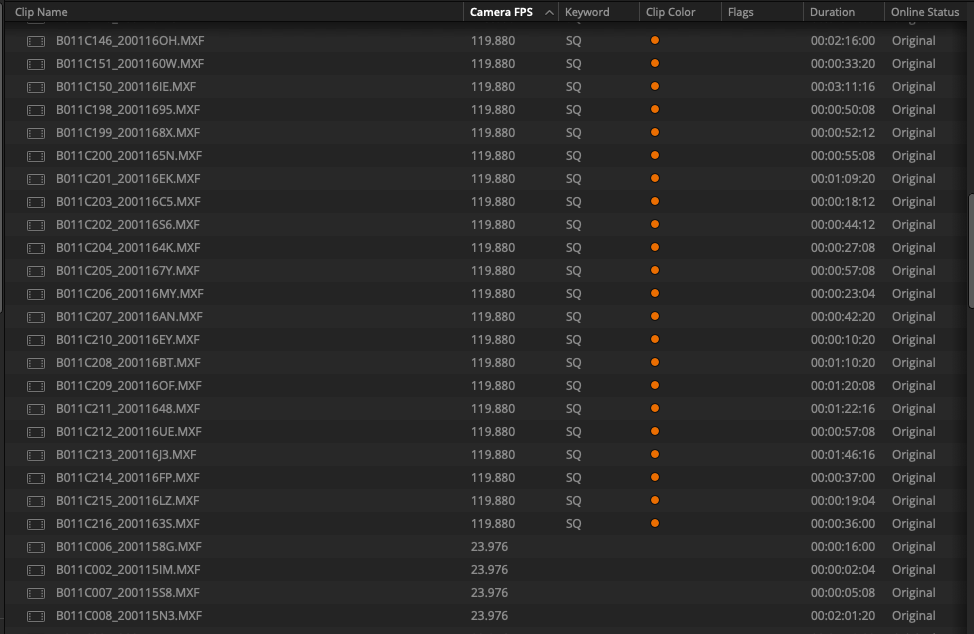
The point is not the scan. It is that afterwards you can see slow motion at a glance instead of interrogating clips one at a time, which on long-form work is the difference between handing an editor a project and handing them a pile.
It handles the awkward cases too: clips whose metadata went missing when someone copied them out of the card structure, and large or cloud projects that have to be worked in short passes. It never touches your media, only project metadata.
Mac, free, signed and notarized by Apple.
One thing worth sitting with
I knew what I wanted for about five years before I built it. Every big job made the case again, and every big job was also the reason there was no time to do anything about it.
A lot of post workflow is like that. Not a missing feature, just something the camera already told you, in a place nothing thought to look.