Built for · the revision loop
Notes in, markers on the timeline, v2 on the same link.
An editor's real workflow is a loop: the cut goes out, notes come back, the timeline changes, the next version goes out. Every tool change inside that loop, email to spreadsheet to NLE, is where notes get lost and versions get confused. This keeps the whole loop in one place, and wires it straight into Resolve.
4 things that go wrong
What breaks the revision loop, and how this fixes it
The friction
Notes arrive as prose, not timecodes
'The part where the music swells' is a search problem. You scrub for it, guess, and retype what you found as a marker.
What this does instead
Clients comment at the frame they're parked on. The note IS the timecode. The free Resolve app places those notes on your timeline as markers, so addressing feedback starts at the marker, not a search.
The friction
Version confusion
v3_FINAL_final2.mov goes out over three different links, and the client gives notes on the wrong one.
What this does instead
Versions stack on one review link. The client always opens the current cut; prior cuts stay one click away for reference. There is exactly one URL for the life of the edit.
The friction
The paper edit is manual labor
Doc and interview work means hours of transcribing selects before the real cutting starts, or paying a service per minute.
What this does instead
Any review video can be transcribed automatically. Read along with timecodes, fix the text inline, export .srt for captions or plain text for the paper edit.
The friction
Receiving footage is chaos
Producers hand you a Dropbox link that zips 900 clips into one flat folder, or a drive that arrives Thursday for a Friday cut.
What this does instead
A receive link lets anyone drop a full folder to you from their browser, no account needed. You pull it down through the Mac app and the card structure lands on disk the way it was shot.
One revision cycle
The loop, with the friction removed
- 01
Footage lands organized
The producer drops the shoot into your receive link, or the whole team works from one Project Sync folder. Either way the tree on your disk matches the tree that was shot.
- 02
The cut goes out from your desktop
Flag your exports folder for review and export into it from any NLE. The app detects when the render finishes writing and uploads it on its own, encoded, ready for comments. Exporting IS publishing, and none of it requires Resolve.
- 03
Notes come back on frames
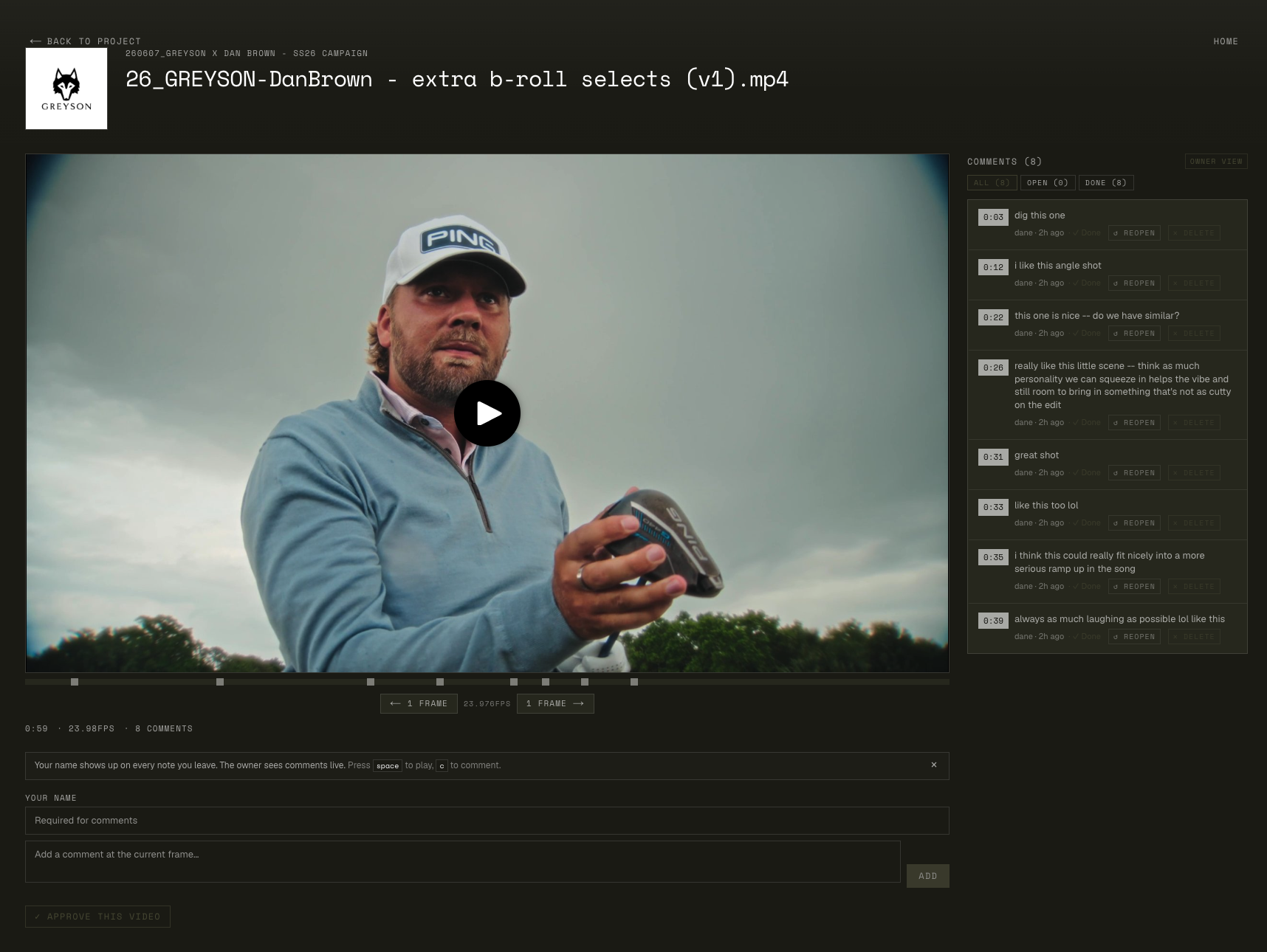
The client comments at timecodes, replies in threads, reacts 👍 to what they agree with. You can answer a note and they'll get an email if they opted in. No 'did you see my note?' calls.
- 04
Notes become markers
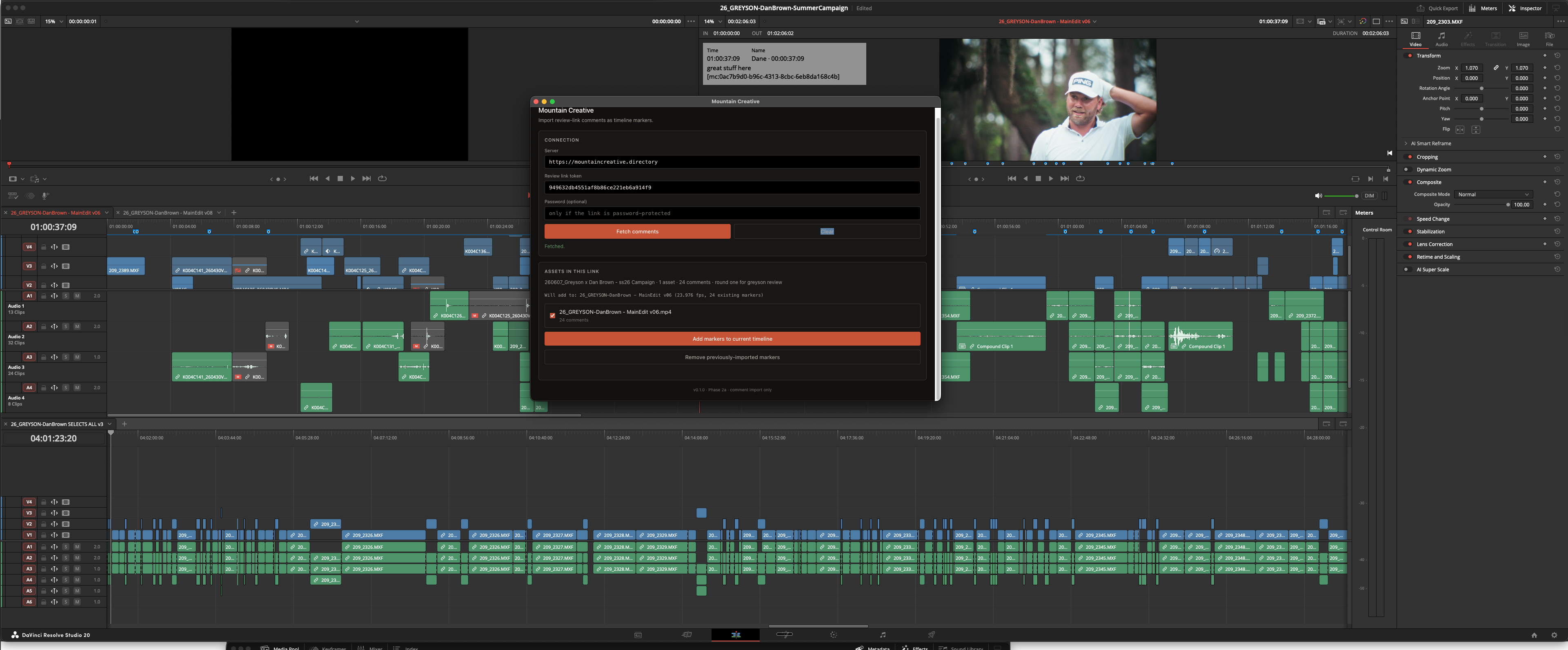
One click in the Resolve app pulls the link's comments onto your timeline as markers. Work marker to marker instead of window to window.
- 05
Render & upload from the same panel
The Resolve app renders with your preset and sends the new version straight to the same review link as v2. The client gets the current cut at the URL they already have.
- 06
Approval, on the record
When the client clicks Approve on the link, the loop is closed in writing, on the same page where every note lived.
The loop's two surfaces
Their review page, your Resolve panel
Left: the review link where the client comments on timecode. Right: the Resolve app that turns those comments into markers and uploads the next version.
Questions editors ask
Frequently asked
How do client comments get into Resolve?
The free Mac app talks to DaVinci Resolve through its scripting API. No plugin install inside Resolve, just enable external scripting in Resolve's preferences once. Pick the project, click import, and the review link's comments land as markers at their timecodes on your timeline.
Can I render and upload without leaving Resolve's ecosystem?
Yes. The app's Resolve tab renders your current timeline with a render preset you choose and uploads the result as the next version on the review link, or drops it into a magic folder that publishes it automatically. It can also import a footage folder into your media pool as bins that mirror your folder structure, camera-card junk excluded.
Do new versions notify the client?
The review page shows the new cut at the top of the same link the client already has. They see it on their next visit, and a banner points out a new cut arrived while they were on the page. Prior versions stay accessible so 'wait, what changed?' has an answer.
How good are the transcripts?
They're generated by a dedicated speech engine, readable with timecodes alongside the player, and editable inline when a name or term needs fixing. Export .srt/.vtt for captions or plain text for paper edits. Each video's transcript is a click away for anyone on the review link.
Does the client need an account to comment or approve?
No. They type a name with their first comment and that's the whole setup. Optionally they add an email to be notified when you reply to their note. Approval is a button on the same page.
I'm on Premiere, not Resolve. Is this useless to me?
The Resolve integration is Resolve-only, but everything else is NLE-agnostic: review links, stacked versions, transcripts, receive links, Project Sync, deliveries. You export from Premiere into a magic folder and the publish step is identical.
What does the client actually see when I share a link?
A clean player page with the current cut, a comment rail, version history, and optional transcript, all under the project's name, not a third-party brand. No account wall, no app install, works on their phone.
Test it on your next round of notes
3-day trial. Run one revision cycle through it.
If the notes end up on your timeline instead of in your inbox, it worked.